Let's look at how to create a piece of content and we're going to start with something simple which is how to create a quote card.
The first tool is called Canva and this is a popular design tool that you can use right in your browser and they also have a mobile app and this is going to give you a lot of templates and formats for instagram.
So you're gonna be able to quickly get the sizes you need for instagram stories for the reels and for your posts so that you can create your instagram content.
It's also gonna give you a lot of templates and branding features to make your content look professional.
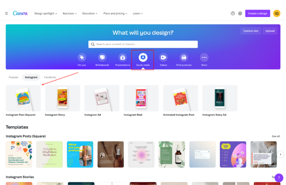
To do this, we go to the social media tab on Canva.com and you can see here all the templates that it has - it's gonna give you the post as a 1080x1080 square, you can also do the story instagram reels animated post but we're going choose the instagram post square as our template.
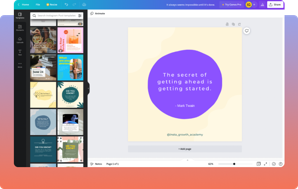
That's gonna take you into the editor where you can start designing your post.
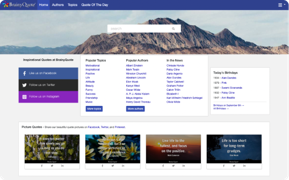
What I recommend is starting with a pre-built template and then copying the quote found on Brainyquote to paste into the existing template.
So here, for example, we created a quote off of one of these templates, so you can see, we just changed some of the colors here and added in my quote and this is a really simple quote card.
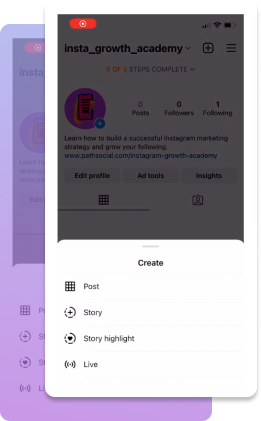
Now we can just download that and save it to our computer and then we can open it up on our phone and create a post.
It's going to ask if we want to have some filters built in, you can browse for filters, but we recommend just keeping it the same normal without a filter.
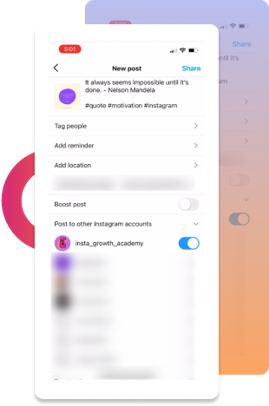
You can add a caption using just the quote itself or some sort of comment on the quote, add some hashtags and then publish that - it'll post to your feed and you're now going to have your first quote card published on instagram.

Step 5: Add the quote and some hashtags as the captions and hit publish
2022 Path Social. All Rights Reserved